OptimAI Core Node
Core Node is the high-capacity OptimAI client. It is built for operators who want to run deeper network workloads: Claw execution, browser-native tasks, extraction jobs, compute, storage, validation, and campaigns.
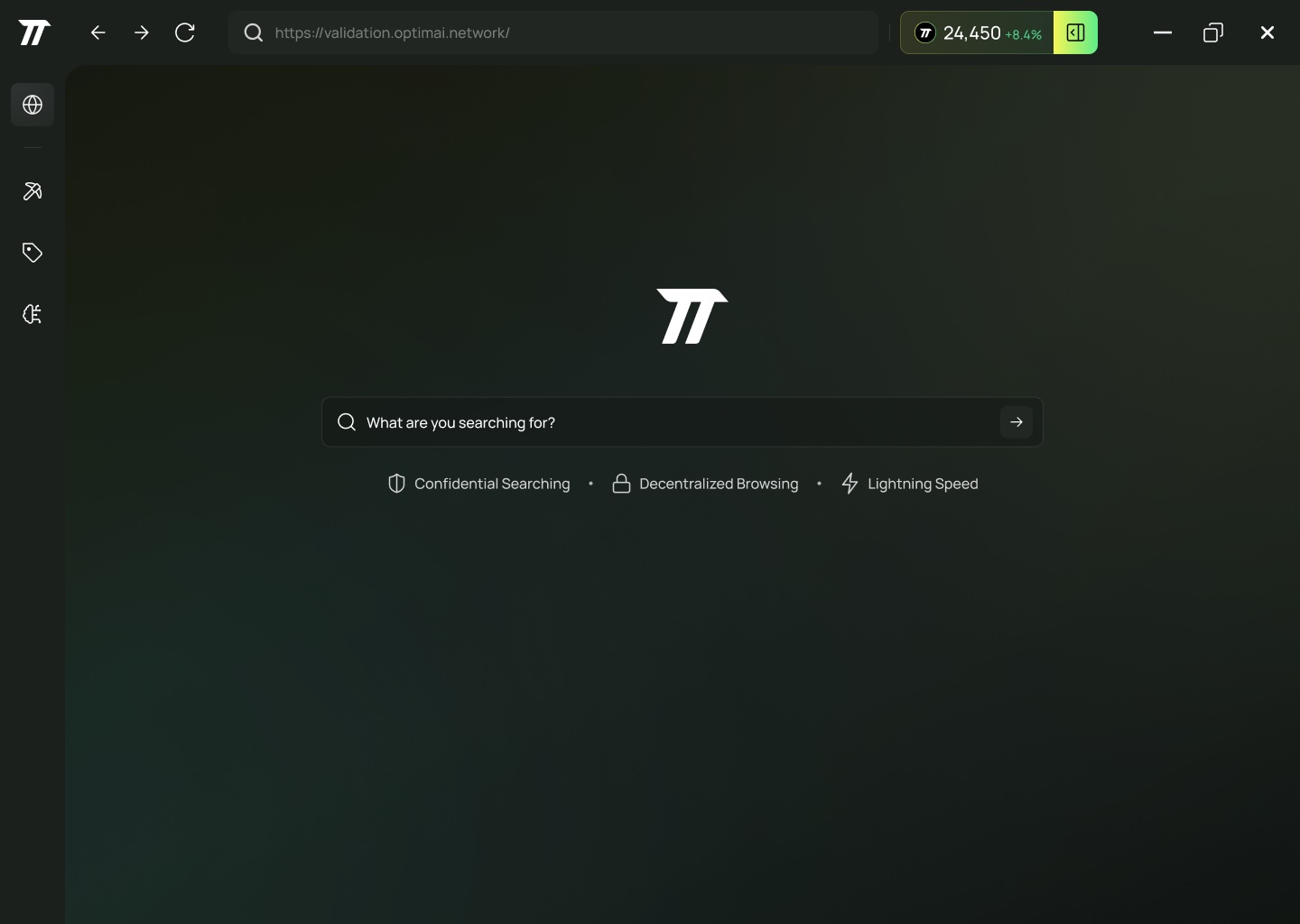
What Core Node Enables
| Capability | Description |
|---|---|
| Claw runtime | Run node-resident agent workflows for research, extraction, and execution. |
| Browser-native tasks | Process dynamic web contexts and approved browser workflows. |
| Extraction jobs | Turn sources into structured records with provenance. |
| Compute tasks | Support preprocessing, embeddings, validation, and future inference workloads. |
| Campaign execution | Participate in targeted network jobs with explicit objectives and reward budgets. |
| Node reputation | Build reliability through uptime, accepted results, and validation quality. |
Requirements
- RAM: 4 GB minimum, 8 GB recommended.
- CPU: 2 cores or more.
- Disk: 15 GB free space.
- OS: Windows 10/11, macOS 12+ on Intel or Apple Silicon, or Ubuntu 22.04+.
- Docker: Docker Desktop on Windows/macOS or Docker Engine on Linux.
- Account: OptimAI account.
- Network: active internet connection.
Core Node workloads require Docker to be installed and running before you start the node.
Desktop App
Use the Desktop App if you prefer a visual interface for node status, rewards, and participation.
- Download the installer:
- Install and launch the app.
- Sign in with your OptimAI account.
- Start the node after Docker is running.
CLI Node
Use the CLI for servers, headless environments, or advanced operators.
macOS
curl -L https://cli-node.optimai.network/optimai_cli_darwin_universal2 -o optimai-cli
chmod +x optimai-cli
sudo mv optimai-cli /usr/local/bin/optimai-cli
Ubuntu Linux
curl -L https://cli-node.optimai.network/optimai_cli_ubuntu -o optimai-cli
chmod +x optimai-cli
sudo mv optimai-cli /usr/local/bin/optimai-cli
Windows
curl.exe -L https://cli-node.optimai.network/optimai_cli_windows.exe -o optimai-cli.exe
.\optimai-cli.exe --help
Run The CLI
Sign in:
optimai-cli auth login
Start the node:
optimai-cli node start
Check status:
optimai-cli node status
View rewards:
optimai-cli rewards balance
Update the CLI:
optimai-cli update
Stop the node by pressing Ctrl+C in the terminal where it is running.
Background Operation
On Linux or macOS, use a terminal session manager if you want the node to keep running after you disconnect.
screen -S optimai
optimai-cli node start
Detach with Ctrl+A, then D. Resume later with:
screen -r optimai
Operator Guidance
- Keep Docker running before starting the node.
- Keep the node updated.
- Use stable connectivity.
- Review permissions before running authenticated or personal workflows.
- Monitor status and reward balance regularly.
- Use Core Node when you want to run Claw or advanced network tasks.
Troubleshooting
| Issue | What to check |
|---|---|
| Browser login fails | Try optimai-cli auth login --legacy. |
| Docker not running | Start Docker Desktop or Docker Engine, then retry. |
| Node already running | Run optimai-cli node status to check the active process. |
| Rewards not visible | Confirm you are signed in with the expected account and that tasks have been accepted. |